DocsUser Interfaces
Keyboard teleoperation
Fly one or many drones from the keyboard in speed or position steps, and pause or resume their behaviors.
Keyboard teleoperation opens a window that flies drones from the keyboard. It sends velocities or position steps to every selected drone at once, shows where each drone is, and pauses or resumes the behaviors they're running.
It uses the Python API, so it needs the platform, the state estimator, the motion controller, and the take-off and land behaviors running for each drone.
Install
The window is built with PySimpleGUI, which isn't installed with Aerostack2. Install the last free version of it, along with tkinter, which it draws with:
sudo apt install python3-tk
pip install PySimpleGUI-4-foss
On Ubuntu 24.04, pip refuses to install into the system Python, so add --break-system-packages.
Pixi environments don't include it either.
Running it
ros2 launch as2_keyboard_teleoperation as2_keyboard_teleoperation_launch.py \
  namespace:=drone0,drone1 \
use_sim_time:=true| Argument | Default | What it does |
|---|---|---|
namespace | drone0 | The drones to fly. Several are separated by commas |
use_sim_time | true | Use simulation time. Set it to false on a real drone |
verbose | false | Log more detail |
initial_mode | pose | The mode the window opens in. pose opens in Pose mode, and anything else in Speed mode |
speed_value | 0.5 | The horizontal speed in Speed mode, in m/s |
altitude_speed_value | 0.5 | The vertical speed in Speed mode, in m/s |
turn_speed_value | 0.5 | The yaw rate in Speed mode, in rad/s |
position_value | 1.0 | The horizontal step in the pose modes, in meters |
altitude_value | 1.0 | The vertical step in the pose modes, in meters |
turn_angle_value | 0.78 | The yaw step in the pose modes, in radians |
speed_frame_id | earth | The frame of Speed mode's velocities. earth or base_link |
pose_frame_id | earth | The frame of the pose modes' targets. Keep it at earth |
modules | empty | Extra Python API modules to load, such as follow_reference, so their behaviors show up under behavior control |
drone_frequency | 100.0 | How often each drone's interface updates, in Hz |
The defaults come from config/teleop_values_config.yaml in the package. Pass your own file as
config_file to change several at once.
Modes
The three mode buttons on the left switch how the arrows and w, a, s, d move the drones:
| Mode | What a key sends |
|---|---|
| Speed | A velocity, held while keys keep arriving |
| Pose | A position one step away from where the drone is now, along the earth axes |
| Body Pose | The same step, turned to the drone's heading, so up moves the drone forward |
In Speed mode each key sends the whole velocity, so pressing w while moving forward stops the
forward motion. When no key arrives for 50 ms, the drones are sent a zero velocity and stop.
In the pose modes each step starts from the drone's current position, not from the last target, and
the arrows and w, s keep the current heading. There's no speed limit, so the motion controller
decides how fast the drone gets there.
Keys
| Key | Speed mode | Pose and Body Pose modes |
|---|---|---|
| ↑ / ↓ | Forward or back along x | One step forward or back |
| ← / → | Left or right along y | One step left or right |
w / s | Up or down | One step up or down |
a / d | Turn counter-clockwise or clockwise | Turn one step counter-clockwise or clockwise |
These work in every mode:
| Key | Action |
|---|---|
t | Arms the drone, switches it to offboard and takes off to 1 m at 1 m/s |
l | Lands at 0.5 m/s |
| space | Hovers in place |
| Delete | Emergency stop. Sends the kill switch, which stops the motors |
The emergency stop keeps sending the kill switch until the window is closed, so restart the teleoperation before flying again. What the kill switch does is described under emergencies.
Try every key in simulation first
Check that take-off, landing, hover and the emergency stop work as you expect in simulation before flying a real drone. The window only sees keys while it has focus.
Choosing drones
The Drone selection control list on the right has a checkbox for each namespace, and every key goes to the drones that are checked. All of them start checked. Each drone gets its command in its own thread, so they move together.
Settings
Settings opens a window with the six values from the table above, the speeds and the steps. They take effect when you press Save or close the window, and Save also updates the values shown in the main window. They aren't saved to a file, so they're back to the defaults on the next start. Use the launch arguments for values you want every time.
Localization
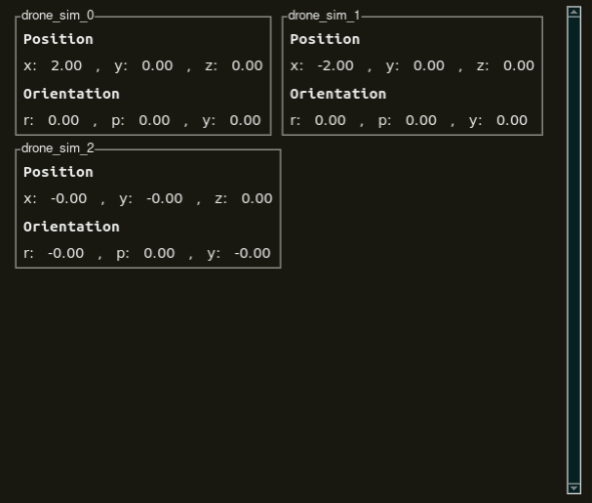
Localization opens a window with every drone's position and orientation, from
self_localization/pose in the earth frame.
Behavior control
Behavior control opens a panel that pauses and resumes the behaviors the drones are running,
whoever started them, such as a mission script. It lists take off, land, go to and follow path, plus
the behaviors of any modules you loaded, as namespace:behavior.
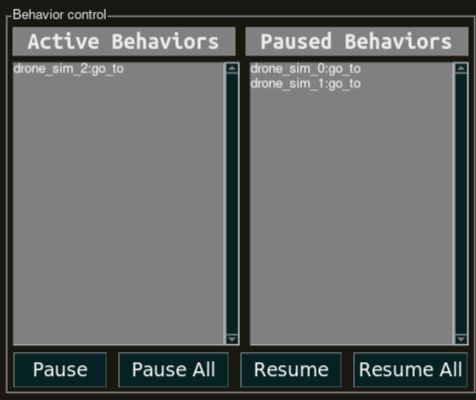
Select behaviors under Active Behaviors and press Pause, or select them under Paused Behaviors and press Resume. Pause All and Resume All act on every drone, whether it's checked or not. A paused behavior holds the drone in place until it's resumed.
Last updated on November 3, 2026